

[Group buy] Admin Menu Editor Pro
Price range: $5.50 through $30.50
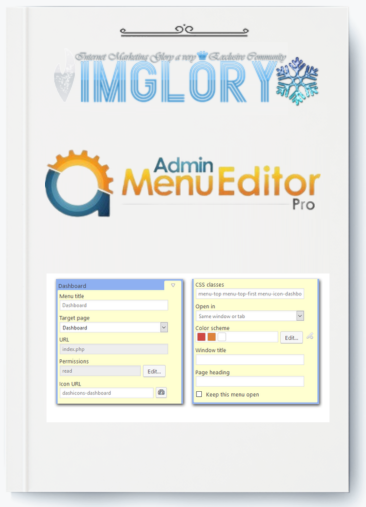
Admin Menu Editor Pro – The ultimate WordPress administration solution with easy menu customization & permissions.
| Deliver | Product FE – 1 or 10 site |
|---|---|
| Access | Install Service |
| Type | Admin Themes |
| License | GPL License |
| Details | GB Details |
What is Admin Menu Editor Pro?
Admin Menu Editor Pro is a powerful WordPress plugin that allows users to fully customize and control the WordPress admin menu.
It is particularly useful for managing user roles and permissions, ensuring that users only see the menu items relevant to their tasks. This plugin enhances security, streamlines the admin experience, and is ideal for creating a simplified, user-friendly interface, especially for non-technical users. By organizing and customizing the admin menu, Admin Menu Editor Pro helps to make WordPress management more intuitive and efficient for both developers and clients.
Key Features of Admin Menu Editor Pro
When it comes to Admin Menu Editor Pro, the reason why this plugin is considered “worth every penny” goes beyond just basic menu customization. It also comes with a wide range of advanced tools that make WordPress administration cleaner, more intuitive, and far more secure. Let’s dive into the details and see why this is a true must-have plugin for every WordPress website owner.
1. Hide Menus and Assign Role-Based Permissions

The biggest strength of Admin Menu Editor Pro is menu visibility management. By default, WordPress only offers fixed roles such as Administrator, Editor, Author, or Subscriber. This plugin allows you to customize exactly which menus appear for each role. That means every user only sees what they truly need to see.
2. Organize Menus with Drag-and-Drop
When you install multiple plugins, the menu often gets messy. Admin Menu Editor Pro solves this with a super-intuitive drag & drop interface:
- Drag “Posts” to the top for faster access.
- Move submenu items between menus as you like.
- Create shortcut menus linking directly to pages, posts, or plugins.
The result? A cleaner, user-friendly Dashboard that is especially helpful for beginners or clients with little technical knowledge.
3. Customize Icons and Colors – A More Vibrant Dashboard
Beyond reordering, Admin Menu Editor Pro also lets you bring life to your Dashboard with icon and color customization:
- Choose from 600+ Dashicons & FontAwesome icons, or upload custom ones (PNG, GIF).
- Adjust background, text, icon, and hover colors for each menu.
- Assign unique colors per menu for easier navigation.
4. Create New Menus & Custom Links
This plugin isn’t limited to editing existing menus — it also supports creating entirely new menus:
- Add links to any URL, including external sites.
- Embed posts/pages directly inside the menu for instant access.
- Create “non-clickable” menus to serve as section headers inside the Dashboard.
5. Open Menus in iFrame or New Tabs
A premium feature rarely found in other plugins: you can choose to open menus inside an iFrame within the Dashboard or in a new browser tab. This both improves workflow and reduces confusion when multitasking.
6. Import & Export Menu Configurations
If you manage multiple websites, this is a real time-saver. Simply export the configuration file from site A and import it to site B — no need to repeat settings.
This guarantees consistent layouts across multiple websites, especially valuable for freelancers or agencies.
7. Hide Plugins and Protect Admin Accounts
With Admin Menu Editor Pro, you can hide plugins from the Plugins list, preventing others from accidentally deleting or modifying them. You can also secure vital admin accounts from unauthorized changes.
The result? Maximum website security and peace of mind when handing projects over to clients.
8. Add-ons: Branding & Toolbar Editor
The Pro version includes two powerful add-ons:
- Branding: Replace the WordPress logo, customize login page colors, hide update notifications, and fully personalize your brand identity.
- Toolbar Editor: Modify the Admin Bar – add, remove, reorder menus, rename items, and insert custom links.
These tools allow you not only to flexibly manage menus but also to deliver a professional and branded WordPress experience.
Admin Menu Editor Pro Pricing
| Package | Price | Number of Sites | Included Add-ons | Updates |
| Package 1 Site | Only $5.5 / site | 1 Site | – | 1-Year Free Updates |
| Package 10 Sites | Only $30.5 / 10 sites | 10 Sites | – | 1-Year Free Updates |
Where to Buy Admin Menu Editor Pro Cheap?
If you want to buy genuine Admin Menu Editor Pro while saving money, Imgory is your trusted choice. We provide shared accounts at unbeatable prices:
- Package 1 site: only $5.5 / site
- Package 10 sites: only $30.5 / 10 sites
Compared to buying directly from the official website, this pricing helps you save significantly while still enjoying full license benefits. All accounts are stable, secure, and come with full functionality.
Why Upgrade to Admin Menu Editor Pro via Imgory?
We always prioritize trust and customer experience. Here’s why you should purchase from Imgory:
- Extremely low cost: Instead of paying tens or even hundreds of dollars, you get the Pro version for just a fraction.
- Licensed and secure: Accounts are legally licensed and 100% safe.
- Dedicated support: Our team is always available to assist you with installation and usage.
- Long-term stability: Shared accounts are carefully managed to minimize errors and ensure compatibility with updates.
Many customers have shared positive feedback, confirming this as a reliable and budget-friendly option for WordPress administrators.
How to Buy Admin Menu Editor Pro at Imgory
Purchasing is quick and easy:
- Visit Imgory: Go to our website and search for Admin Menu Editor Pro.
- Select your package: Choose between the 1-site or 10-site package depending on your needs.
- Complete payment: We support multiple payment methods with fast confirmation.
- Receive access instantly: Once payment is complete, you’ll be given shared account details.
- Install and activate: Follow the instructions to unlock all Pro features.
How to Install Admin Menu Editor Pro
New Installation
- Download the Plugin: First, download the
admin-menu-editor-pro.zipfile to your computer from the official website. - Upload the Plugin: Navigate to your WordPress dashboard and go to
Plugins->Add New->Upload. Select the.zipfile you downloaded and click “Install Now.” - Activate the Plugin: Once installed, click “Activate” to enable the plugin on your site.
- Enter License Key: After activation, you’ll need to enter your license key. Click on “Enter License Key” and input the key you received with your purchase.
- Access the Menu Editor: You’re all set! To start customizing your admin menu, go to
Settings->Menu Editor Pro. The plugin will automatically load your current menu configuration when you access it for the first time.
Upgrading from the Free Version
- Deactivate the Free Plugin: If you are upgrading from the free version, deactivate it first but do not delete it. This step ensures your existing settings are preserved.
- Install the Pro Version: Follow the same steps outlined in the “New Installation” section. The Pro version will automatically import your settings from the free version.
- Verify Settings: After installation, go to
Settings->Menu Editor Proto ensure your settings have been imported correctly. Once confirmed, you can safely uninstall the free version.
Multisite Installation
For WordPress setups in multisite (“Network”) mode:
- Download and Unzip: Download the
admin-menu-editor-pro.zipfile and unzip it. - Create Directory: Create a
mu-pluginsdirectory in your site’swp-contentdirectory if it doesn’t already exist. - Upload Plugin Files: Upload the
admin-menu-editor-prodirectory to/wp-content/mu-plugins/. - Move PHP File: Move the
admin-menu-editor-mu.phpfile fromadmin-menu-editor-pro/includesto/wp-content/mu-plugins/.
Once installed, the plugin will be “always on” for all sites in the network, and you won’t need to activate it manually. To customize your admin menu, go to Settings -> Menu Editor.
Notes:
- Network Activation: Alternatively, you can install the plugin normally and activate it globally via “Network Activate.” However, this will make the plugin visible to regular users when inactive.
- Super Admin Access: When installed in
mu-pluginsor activated via “Network Activate,” only the “super admin” can access the menu editor page. Other users will see the customized menu but won’t be able to edit it.
Requirements:
- WordPress version 4.7 or higher.
- PHP version 5.6 or higher (PHP 7.4 or greater is recommended)
That's it! Now, let's explore how to effortlessly modify the WordPress Dashboard menu using Admin Menu Editor Pro:
Pros:
- Customizable Admin Menu: Admin Menu Editor Pro allows you to organize, hide, and rename menu items, creating a more efficient and personalized dashboard experience.
- User Role Management: You can assign specific admin menus to different user roles, ensuring that users only access the features necessary for their tasks.
- Improved Usability: By reducing clutter, this plugin makes the WordPress admin area more intuitive and user-friendly, especially for non-technical users.
- Enhanced Security: The ability to restrict access to critical functions helps minimize the risk of accidental changes or errors by unauthorized users.
- Iframe Integration: The iframe feature allows for better control and display of external content within the admin area, offering a seamless experience for users.
- Toolbar Customization: You can adjust the toolbar based on user roles, improving workflow and enhancing user experience.
- Efficiency: The plugin saves time by creating a streamlined and well-organized admin interface, making site management quicker and easier.
Cons:
- Learning Curve: While the plugin is powerful, new users may require some time to fully grasp its capabilities and customization options.
- Compatibility: There may be occasional compatibility issues with other plugins or themes, requiring adjustments or support.
Who is Admin Menu Editor Pro For?
Admin Menu Editor Pro is an ideal tool for a wide range of WordPress users, each benefiting from its extensive customization features:
- Website Administrators: For those managing complex WordPress sites, this plugin is invaluable for organizing the admin dashboard, streamlining workflows, and enhancing security by restricting access to critical features.
- Web Developers: Developers often need to tailor the WordPress admin for clients. Admin Menu Editor Pro allows them to create a simplified and branded admin experience, ensuring clients have access to only what they need.
- Membership Site Owners: Those running membership sites can use this plugin to create customized dashboards for different user roles, ensuring a clean and focused interface that improves user experience.
- Agencies: Digital agencies managing multiple client sites can use Admin Menu Editor Pro to standardize and streamline the admin menus across different projects, making maintenance and support more efficient.
- Freelancers: Freelance developers and designers can leverage the plugin to deliver a more polished and professional admin experience to their clients, enhancing the overall value of their services.
- Content Managers: Content managers can benefit from a simplified admin interface that allows them to focus on content creation and management without being overwhelmed by unnecessary options.
- Online Businesses: Businesses running their operations on WordPress can use this plugin to ensure their teams only access relevant tools, reducing the risk of errors and improving productivity
Frequently Asked Questions about Admin Menu Editor Pro at Imgory
- How do I customize WordPress menus with this plugin?
Simply install the plugin, go to Settings → Menu Editor Pro, then drag, rename, or hide menus as you like.
- How can I hide menus for specific users?
Go to the Access Permissions section, choose the menu you want to hide, and assign it by role. Quick and simple.
- Can I add custom menus?
Absolutely! You can add external links, posts, pages, customize icons, and even open them in new tabs.
- How do I change menu icons and colors?
Click on the menu you want to edit, select the icon and color — your admin panel instantly looks more professional.
- How does drag-and-drop sorting work?
The interface is visual — just drag the menu where you want it, and the plugin saves it automatically.
- Does it support role-based access?
Yes. You can easily set visibility rules for Admin, Editor, Author, Subscriber, and more.
- Is it compatible with Multisite?
Yes. Admin Menu Editor Pro works seamlessly with WordPress Multisite, whether per site or across the network.
- How do I import and export menu settings?
Export a JSON file from one site and import it into another. Perfect for backups and duplication.
- How many sites can I use this account on?
Depending on your package: 1 site or 10 sites. Use according to your selected plan.
- Is the shared account safe?
Yes, 100% safe. All access is securely managed to guarantee stability.
- Can I upgrade from 1 site to 10 sites?
Of course. Just contact us and we’ll upgrade your package without affecting your data.
- What if I encounter installation errors?
You’ll receive immediate support via chat or email with detailed guidance.
- Will I receive updates?
Yes. All accounts purchased from Imgory include official updates.
Conclusion
Unlock the full potential of your WordPress admin dashboard with Admin Menu Editor Pro – now available at an unbeatable price through Imglory. This powerful tool offers unmatched customization and security features, tailored to your specific needs. Don’t miss out on this opportunity to enhance your website management experience while saving money. Invest in Admin Menu Editor Pro today and take advantage of exclusive offers available through Imglory. Your optimized WordPress dashboard is just a click away!
| Site | 1 Site, 10 sites |
|---|
Related products

GB WordPress
Price range: $21.00 through $41.00
GB WordPress
Original price was: $120.00.$15.00Current price is: $15.00.
GB WordPress
Price range: $5.00 through $20.00
GB WordPress
Original price was: $2,410.00.$150.00Current price is: $150.00.
GB WordPress
Original price was: $240.00.$26.00Current price is: $26.00.